Excel Formulas
Nested IF vs IFS vs SWITCH: How to Write Clean Conditional Logic
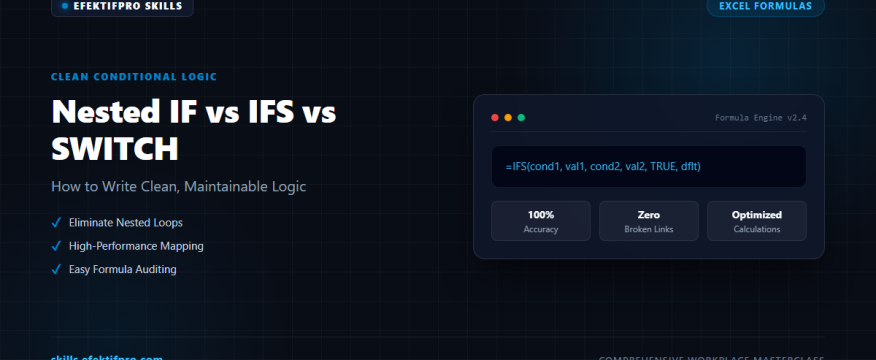
skills.efektifpro.com – Every spreadsheet professional has encountered a legacy workbook containing an intimidating, deeply nested formula spanning four lines of closing parentheses: =IF(A2>90, "A", IF(A2>80, "B", IF(A2>70, "C", ...))). These nested structures are notoriously difficult to audit, prone to parenthesis mismatch errors, and painful to update. Modern Excel provides two superior alternatives: IFS and SWITCH.
Decision Matrix: When to Use Which Function
| Logic Requirement | Best Choice | Reason |
|---|---|---|
| Single condition (True/False) | Standard IF | Simpler and universally supported. |
Multiple ranges or inequalities (>, <=, AND) |
IFS | Evaluates multiple independent boolean conditions sequentially. |
| Matching one specific value against exact list (Codes, IDs) | SWITCH | Tests an expression once against multiple outcomes without repeating the cell reference. |
| Need guaranteed compatibility with Excel 2013/2010 | Nested IF | Older legacy versions do not support IFS or SWITCH. |
Method 1: Writing Clean Tiered Logic with IFS
The IFS function evaluates pairs of condition, value_if_true in sequential order, terminating upon the first true match:
=IFS(condition1, value1, [condition2, value2], ..., [TRUE, default_value])Workplace Example: Commission Tiers Based on Sales Volume (Cell B2):
=IFS(
    B2 >= 100000, 0.15,
    B2 >= 50000, 0.10,
    B2 >= 25000, 0.05,
    TRUE, 0.02
)
Crucial Architecture Tip: Notice the final condition TRUE, 0.02. IFS has no native “else” parameter. Supplying TRUE as the final condition acts as a catch-all safety net. Without it, any value below 25,000 would produce an unsightly #N/A error.
Method 2: High-Performance Exact Matching with SWITCH
When categorizing exact codes, status labels, or regional identifiers, SWITCH is vastly cleaner than IFS because it references the target cell only once:
=SWITCH(expression, val1, result1, [val2, result2], ..., [default_result])Workplace Example: Mapping Shipping Zone Codes (Cell A2):
=SWITCH(A2,
    "US-EAST", "Warehouse Atlanta",
    "US-WEST", "Warehouse Reno",
    "US-CENT", "Warehouse Dallas",
    "EU-WEST", "Warehouse Amsterdam",
    "Third-Party Carrier"
)
If A2 contains "US-WEST", Excel returns "Warehouse Reno" immediately. If an unrecognized code appears, SWITCH seamlessly falls back to "Third-Party Carrier".
📚 Related Excel Formulas Guides